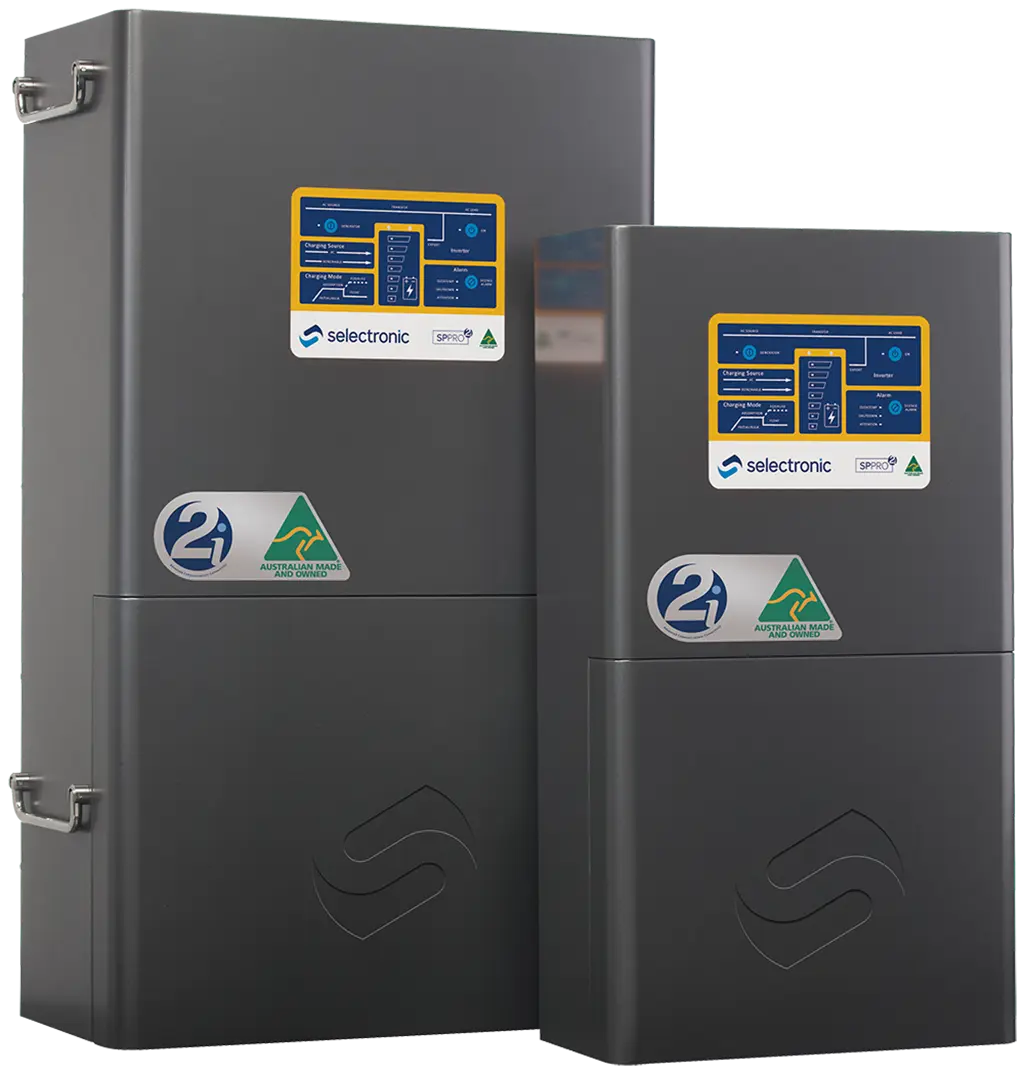
Selectronic Inverters Wi-Fi Reconnect
Selectronic SP PRO Series
(For all SP PRO inverters with Select.live monitoring unit)
1. Check your WiFi signal strength
Stand close to your Selectronic inverter with your phone and check that your home WiFi network appears in the list.
If your network isn’t visible near the inverter, you may need to install a WiFi extender or connect via a LAN cable.
If the inverter cannot detect the signal, it won’t be able to connect to the internet.
2. Power on the SP PRO inverter
Make sure your SP PRO inverter is switched ON, as this provides power to the Select.live unit.
After about a minute, the Select.live screen should illuminate and show a message similar to:
Connect to Wi-Fi SSID: selectronic
Browse to: http://192.168.1.1 to set up
3. Connect your phone or computer to Select.live
Open the WiFi settings on your device.
Select the network named selectronic (no password is needed).
Wait until your device confirms it is connected.
4. Open the Select.live setup page
Open a web browser — Chrome or Safari is recommended.
In the address bar, enter http://192.168.1.1 and press Enter.
The Select.live setup page will then appear.
5. Run the Setup Wizard
Click Setup Wizard.
The wizard will automatically search for and detect your SP PRO inverter.
When asked, select WiFi as the connection method and click Next.
Enter your home WiFi network name (SSID) along with your WiFi password.
Click Next again to finalise the setup.
6. Verify connection status
After roughly 30 seconds, the Select.live display will update to a new screen showing:
- Device ID
- Serial Number
- Cloud: OK (once the internet connection is active)
At this point, your Select.live is successfully connected to the internet.
7. Troubleshooting tips
No “selectronic” WiFi appears: Ensure the SP PRO is powered ON and check the Select.live display.
Forgot WiFi settings: Hold the Reset button on the Select.live for 10 seconds to factory-reset, then repeat Steps 3–6.
Cloud shows “ERROR” or “No LAN”: Re-run the Setup Wizard and confirm your WiFi or Ethernet connection details.
No Device ID or Serial showing: Wait 30 seconds after setup — they will appear automatically.