Fronius Inverters Shut Down and Restart
Restarting your inverter can help resolve communication issues, WiFi dropouts, and minor system faults. It’s important to follow the correct shutdown and start-up procedure to protect your equipment and ensure safe operation.
Before you start
- Make sure it is daylight, as the inverter requires solar input from the panels to start.
- If your system includes a battery or backup unit (such as a GEN24 Plus), confirm there are no active backup operations before restarting.
- Never restart during a lightning storm or when system components appear damaged.
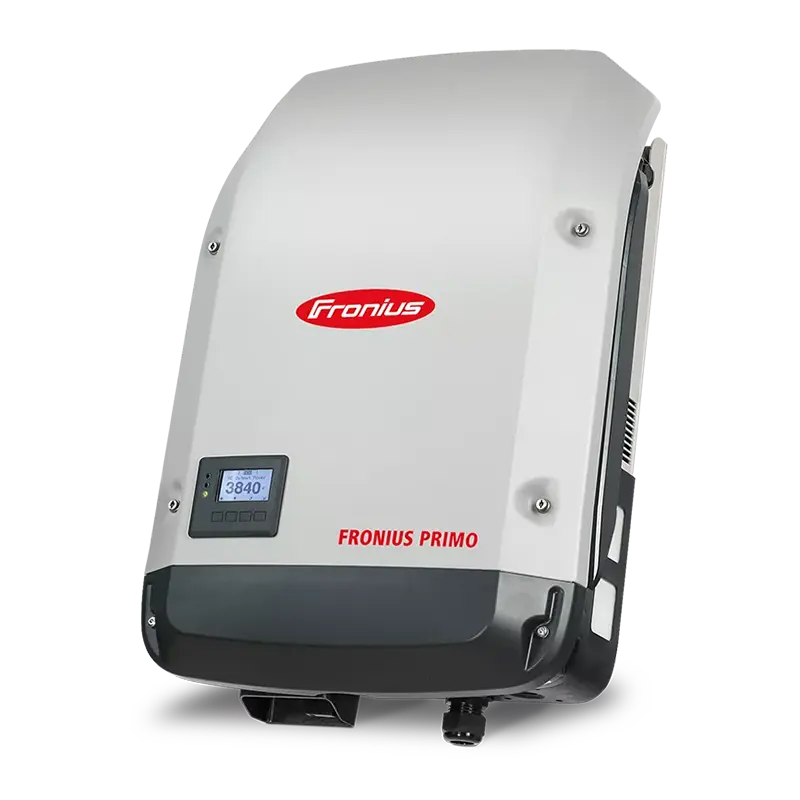
Fronius Primo/Symo Series
1. Turn off the AC supply
Locate the Solar Inverter Main Switch or AC isolator (often near the switchboard).
Switch it OFF.
2. Turn off the DC isolator(s)
Found next to or below the inverter, usually labelled PV Array DC Isolator.
Switch it OFF.
3. Wait 1–2 minutes
Allow the inverter’s display and lights to turn off completely.
4. Turn the DC isolator(s) back ON
Switch the DC isolator(s) to the ON position.
5. Turn the AC supply back ON
Switch the Solar Inverter Main Switch or AC isolator ON again.
6. Wait for the inverter to boot up
The display should show normal startup messages and a green power LED once generating.
If applicable, check for a solid blue WiFi light (connected).
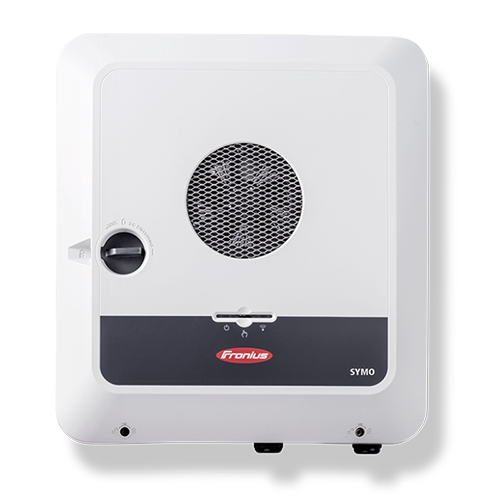
Fronius GEN24 and GEN24 Plus Series
1. Switch off the AC power
Use the AC isolator or main switch for the inverter near your switchboard.
Turn it OFF.
2. Switch off the DC isolator
Located under the inverter or beside it. Turn it OFF.
3. Wait 1–2 minutes
The LED ring and display will go dark when fully powered down.
4. Switch the DC isolator back ON
Turn the DC switch ON and wait a few seconds.
5. Switch the AC isolator back ON
Turn the AC switch ON.
6. Allow inverter to restart
The LEDs will flash during startup.
A solid green light indicates normal operation, and a solid blue light confirms WiFi is connected
7. Check Solar.web monitoring
Confirm that the system data is updating normally.
Tips
- If you’re restarting the inverter after a firmware update or communication change, allow up to 5 minutes for it to reconnect to Solar.web.
- If a fault code appears after the restart, make sure to record it before performing another power cycle.
- If the inverter continues to show errors after multiple restarts, this may indicate a more serious issue — contact your installer or Fronius Support for further assistance.





